Your Secure
Document Portal
Through our secure client portal, you can scan and share documents, access details about your legal matter, and message your attorney. For your convenience, we have prepared this brief guide on how to use our portal.
How to Use Clio for Clients
We encourage all our clients to use their personal CLIO FOR CLIENTS secure portal to communicate with us about their matter, receive and share sensitive or confidential legal and financial documents, and view their bills.
Logging Into the Portal
Using the Clio for Clients Portal
THE MOBILE APP
You can use CLIO FOR CLIENTS on your iPhone or Android. Download the app from the Apple Store or Google Play.
Logging Into the Portal
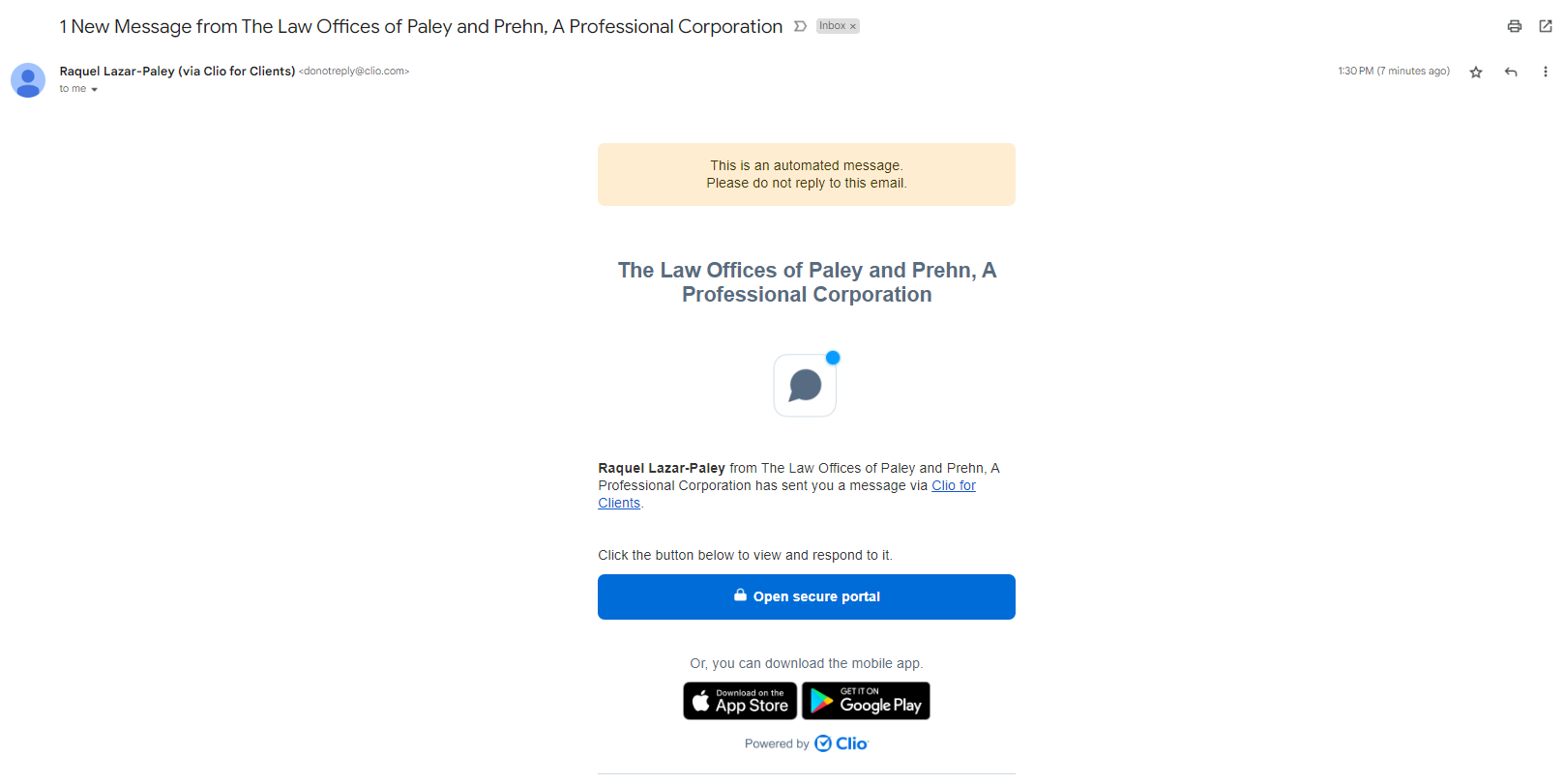
Logging into Clio for Clients does not require a password. Instead, you will log in using your email address and an authentication link will be sent to your email. When our firm first sets up your client portal, you will receive a 1-time use first-time login invitation link to the primary email address associated with your matter. It will appear in your inbox as:
Sender Email: donotreply@clio.com
Subject: 1 New Message from The Law Offices of Paley and Prehn, A Professional Corporation
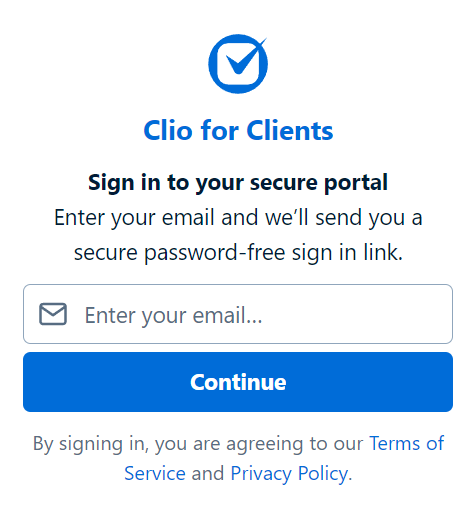
Each time you wish to use your secure portal, go to https://clients.clio.com/ and enter your email address to receive a new login link.
Please keep in mind that each invitation link expires:
- 1 hour after it has been sent to you
- After you have clicked it once
- If you leave your browser
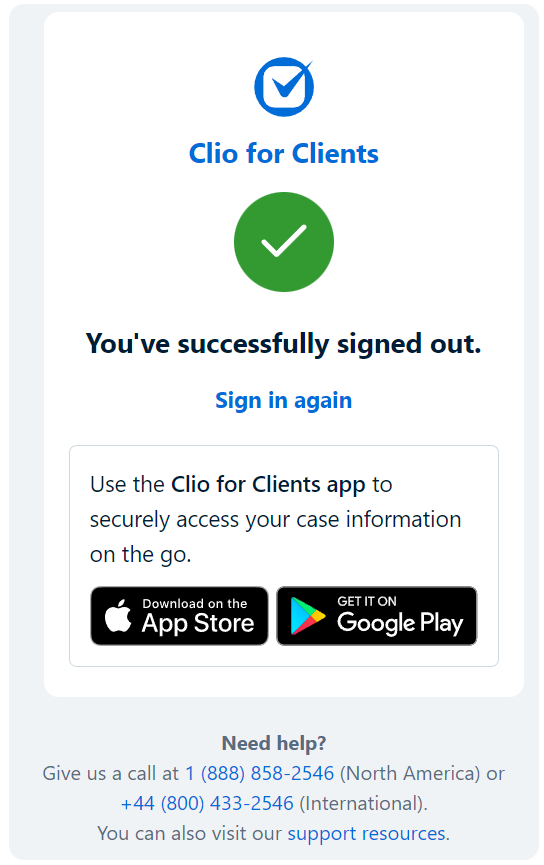
If you sign out of the portal, you can click “sign in again” and request a new login link.
The new login link will appear in your inbox from: donotreply@clio.com.
Using the Clio for Clients Portal
With CLIO FOR CLIENTS, you can securely send Messages, send and receive Documents, and view and pay your Bills.
When you log into your portal, you will be taken to Messages.
Use the menu at the top of the page to navigate to the Documents and Bills sections.
DESKTOP VIEW

MOBILE VIEW


Click the Documents Menu to view and download shared documents, or upload and send us your documents.
DESKTOP VIEW
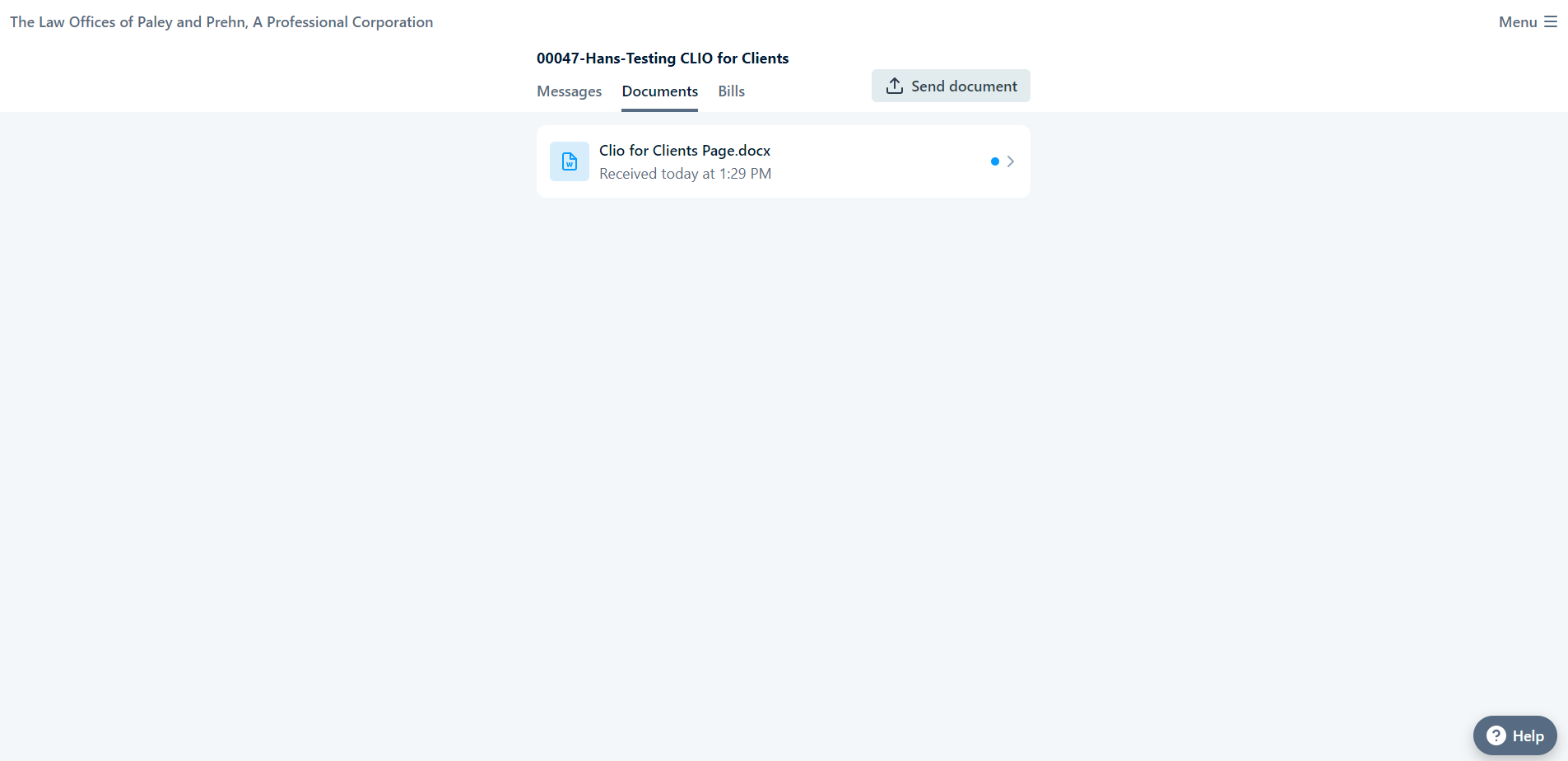
MOBILE VIEW

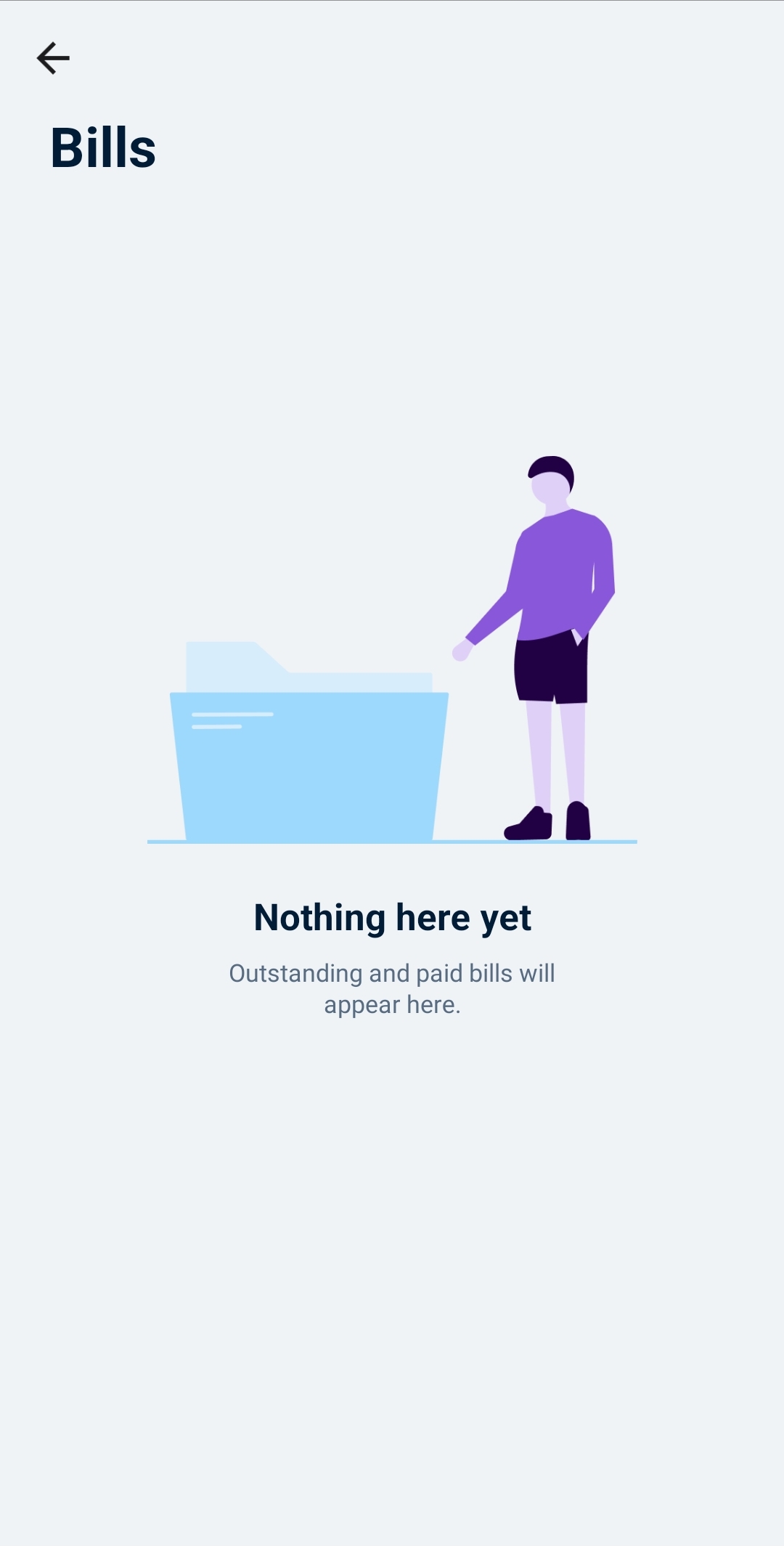
Click the Bills Menu to view your Bills.
DESKTOP VIEW
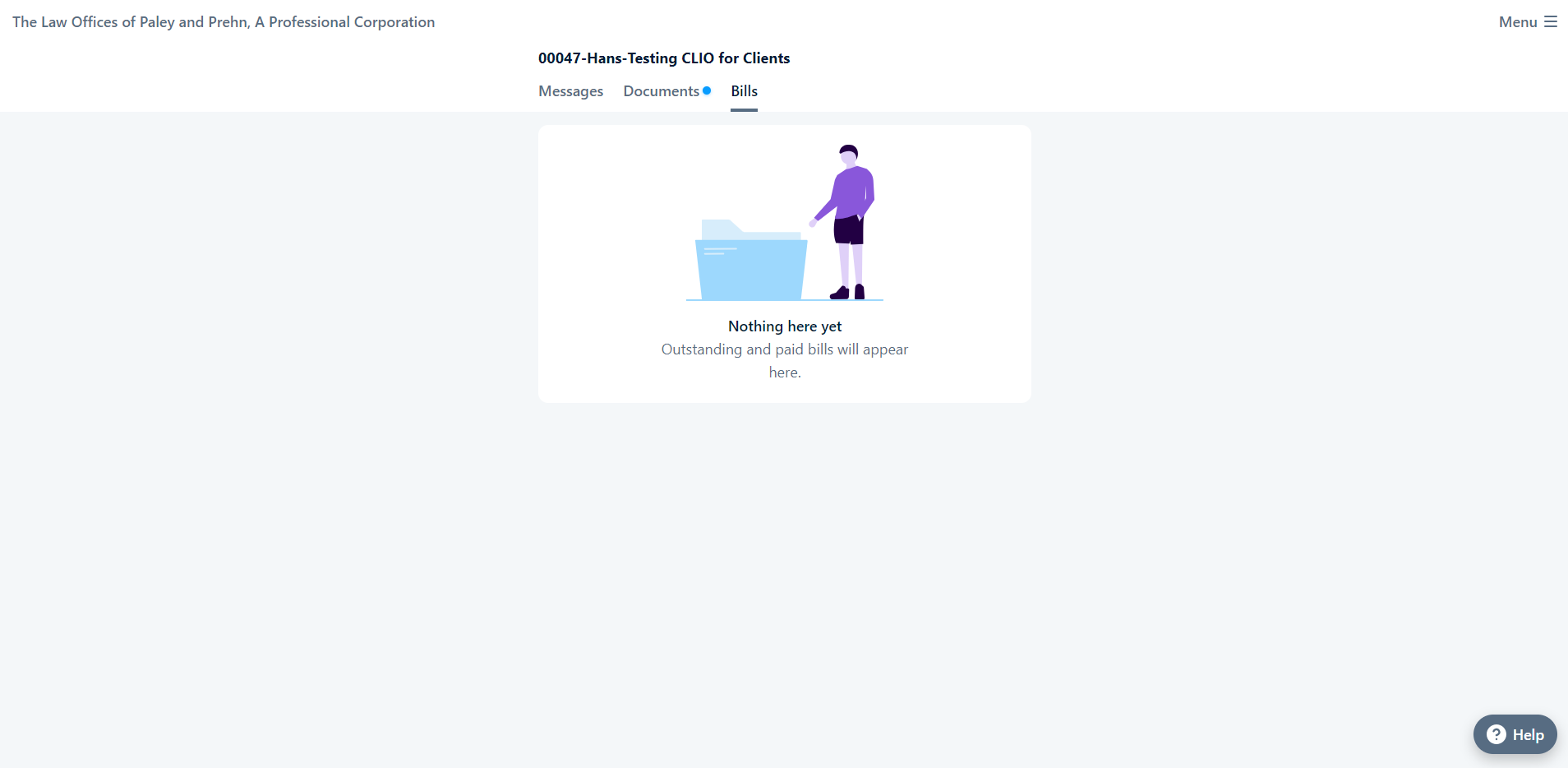
MOBILE VIEW
If You Have More Than One Legal Matter
If you are using the Clio for Clients mobile app and you have more than one case that has resources shared with you, either from the same law firm or a different one, you will see a briefcase icon in the top-right hand corner of the “My Case” screen. By tapping on the briefcase, you can navigate through a list of all your cases.
If you are accessing Clio for Clients from a web browser, click the dropdown menu and then select “Switch Case”.
ASKING FOR HELP
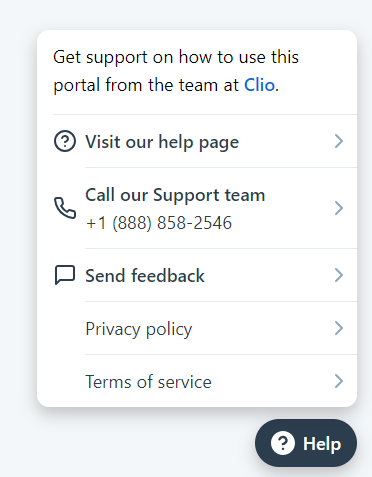
Click on the help button at the bottom right corner of your screen.